What to Do If Your Website Breaks After an Update: A Step-by-Step Guide
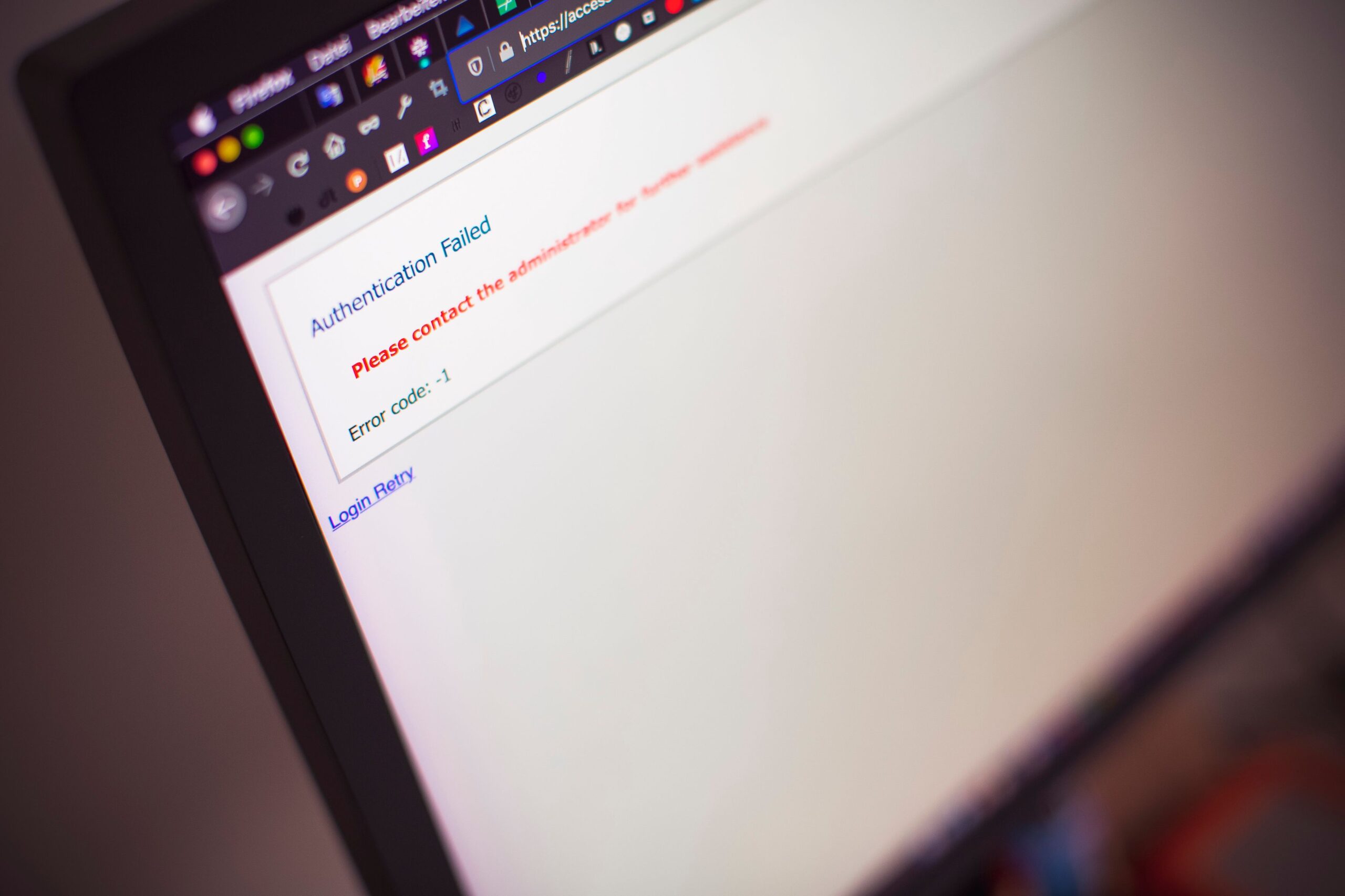
You updated WordPress, a theme or a plugin — and the website stopped working? Instead of the home page you see a 500 error, the design disappears, the admin panel will not open, or forms and buttons stop working?
Such situations can arise after updating a CMS, plugins, themes, modules or server software. The cause may be a conflict between components, version incompatibility, a code error or a change in settings.
The main rule: do not try to fix everything at once. First determine the scale of the problem, check your backups and record the error. Then work through the possible causes one by one and restore the website.
In this article, we look at what to do if your website breaks after a WordPress or other CMS update, how to find a plugin conflict, when to restore a backup and how to prevent the problem from happening again.
1. Identify exactly what stopped working
Before making any changes, check the website from different devices and browsers. Open it in your browser’s private mode to make sure the problem is not related only to the cache or your logged-in session.
Pay attention to the symptoms:
| Symptom | Possible cause | What to check |
|---|---|---|
| The website shows a white screen | Critical PHP error, theme or plugin conflict | Error logs, recent updates |
| A 500, 502 or 503 error appears | Application or server error, or resources exceeded | Server logs, hosting resources, PHP |
| The admin panel will not open | Critical error, authentication problem or component conflict | Error message, logs, hosting access |
| Styles or images have disappeared | CSS/JavaScript errors, caching or incorrect resource paths | Browser console, network requests, cache |
| Forms or buttons do not work | JavaScript conflict or integration error | Browser console, plugins, API |
| SEO titles or meta descriptions have disappeared | SEO plugin conflict or template changes | Page HTML, CMS settings |
| Order emails are not arriving | Plugin, SMTP or third-party service conflict | Email service logs, integration settings |
| The website has become much slower | Incompatible component, caching or increased load | Performance metrics, server logs |
This is a list of possible causes, not a final diagnosis. For example, a 500 error does not necessarily mean the problem is in a plugin: it can also be caused by server settings, PHP or the database.
Record the exact error text, the time it appeared, the name of the component you updated, and the software versions before and after the update, if available. This information will help you find the cause faster.
2. Do not make new changes until you have checked your backup
If the website stopped working after an update, your first task is to preserve the ability to restore it.
Check whether there is a backup created immediately before the update or shortly before it. It is important not just to see a “backup successful” message, but to make sure the copy really contains everything needed for a restore.
A full backup should usually include:
- The database — pages, posts, orders, settings and other data stored by the CMS.
- Website files — the CMS core, themes, plugins, modules and custom code.
- Uploaded files — images, documents and media files.
- Restore instructions — the sequence of steps, access credentials and information about the environment needed to get it running.
For Drupal and other CMSs, the exact contents of a backup depend on the website’s architecture. However, backing up the database, files and code, together with a tested restore procedure, are essential parts of a safe update. Drupal CMS documentation on backups.
What if there is no backup?
Do not rerun the update at random, and do not delete files that may be needed for diagnosis. Contact your hosting provider and check whether automatic backups or server snapshots are available.
If possible, first create a copy of the website’s current state, even if it is already not working correctly. A developer may need it to analyse the error.
If the website takes orders, payments or enquiries, do not restore an old database without assessing the consequences: you could lose new orders, messages or other data created after the backup was made.
3. If your website runs on WordPress: check for plugin and theme conflicts
One common cause of problems after a WordPress update is incompatibility between components. A plugin may not support the current version of WordPress or PHP, may conflict with another plugin, or may use functions that changed in the update.
Step 1. Check the most recently updated component
If the problem appeared right after updating a specific plugin or theme, start with it. Review the error messages, the developer’s documentation and the version compatibility information.
If the admin panel is accessible, first check whether the suspect component can be safely deactivated.
Step 2. Deactivate plugins one at a time
If you do not know which plugin caused the error, check components one by one, starting with those updated most recently.
After each deactivation, check the page where the problem occurred. If the website recovers, this narrows down the possible causes, but it does not always prove that this particular plugin is to blame: there may be a conflict between two components.
Do not delete the plugin straight away — deactivation is usually enough for initial diagnosis.
Step 3. Check the theme
If disabling plugins did not help, check the theme. In a test environment, you can temporarily activate a default WordPress theme and see whether the error disappears.
If the website works with the default theme, the problem may be related to the current theme or its interaction with plugins.
Step 4. If the admin panel is inaccessible
In this case, you may need access to the hosting file manager or SFTP/FTP. A technical specialist can temporarily deactivate the problematic component through the file system, then check the logs and restore the correct configuration.
Do not rename folders or edit system files unless you understand the consequences. Incorrect changes can make recovery more difficult.
WordPress recommends methodical diagnosis of plugin and theme conflicts, backups and checking error logs. The official WordPress.com guide to troubleshooting plugins and themes and the Learn WordPress material on conflicts.
4. Use a staging environment for safe testing
Staging is a test copy of your website where you can test updates, change settings and look for conflicts without directly affecting visitors.
If the website is already broken, staging can also help you reproduce the error and test a possible fix before applying it to the live site.
On a test copy you can:
- disable plugins and activate them one at a time;
- try a different version of a theme or module;
- test CMS updates;
- check compatibility with the PHP version;
- review logs;
- test forms, integrations and key user scenarios.
Important when moving changes from staging to production
Do not copy the test database to the live site without checking. If new orders, enquiries or user data have appeared on production in the meantime, a full database replacement may delete them.
Only move tested changes, and decide in advance which data must remain untouched.
If staging has not been set up yet, plan to create it once critical functions have been restored. This will reduce the risk of problems recurring during future updates.
5. When should you roll back or restore the website from a backup?
A rollback means returning a component or system to its previous working state. However, rolling back one plugin version and fully restoring a website from a backup are different operations.
Option A. Roll back a specific plugin or theme
This option may be suitable if the problem is clearly linked to a specific component and the previous version is compatible with the rest of the system.
Before rolling back, you need to:
- Check the compatibility of the previous version.
- Save a backup of the current state.
- Understand whether the update changed data storage or the database structure.
- Test the rollback on staging, if possible.
- Check the website after restoring the previous version.
Do not keep an outdated component indefinitely, especially if the update contained security fixes. A rollback can be a temporary way to restore the site until the developer fixes the incompatibility.
Option B. Restore a full backup
This may make sense if many functions broke at once, it is unclear what caused the problem, or several system components are damaged.
Before restoring, clarify:
- the point in time when the copy was created;
- which files and data it contains;
- which changes were made after the copy was created;
- whether you will lose new orders or enquiries;
- how to return the website to its current state if the restore fails.
After restoring, check not only the home page but all critical business functions.
Option C. Restore only individual files or components
Sometimes you can restore the previous version of a specific file, theme or plugin. However, selective restoration requires an understanding of the dependencies between components and possible changes to the database.
Do not manually restore individual database tables or mix different versions of files without a technical plan. This can create errors more complex than the original problem.
WordPress offers different recovery scenarios; the choice depends on the type of update and the nature of the error. WordPress documentation on updating and troubleshooting.
6. What if your website runs on a different CMS?
Problems after an update can occur not only in WordPress. Drupal, Joomla, Shopify, Webflow and other systems have their own update mechanisms, dependencies and recovery methods.
Drupal
If your Drupal website is not working correctly after a module or core update, check the error logs, module compatibility, the state of the database and caching. After an update, the platform’s own database update procedures or a cache clear may be required.
Do not restore only the code if the database structure changed during the update. Files, the database and module versions must match each other.
Joomla and other CMSs with extensions
Check that extensions are compatible with the current system version, the server environment and the template. If necessary, reproduce the error on staging and use the official recovery procedures for the specific platform.
Shopify, Webflow and managed platforms
On managed CMSs, the technical team may have less access to server files and system components. So first check the change history, theme settings, third-party apps, integrations and notifications in the dashboard. If the problem is related to the platform itself, contact its support.
Do not use WordPress instructions — such as renaming plugin folders — on another CMS. The recovery procedure must match the platform’s architecture.
7. What to check after fixing the error?
If the page opens again, that does not mean the website has been fully restored. An update may affect functions that are not visible during normal browsing.
Test the main scenarios.
| What to test | What to confirm |
|---|---|
| Home page and internal URLs | Pages open without errors |
| Mobile version | Menus, buttons and content display correctly |
| Forms | Enquiries are received and saved |
| Notifications and confirmations are delivered | |
| Online store | Cart, checkout and payments work |
| Integrations | CRM, API, analytics and other services receive data |
| Authentication | Login, logout and access to user accounts work |
| SEO | Title, description, canonical, robots.txt and sitemap are still correct |
| Performance | Pages load without new critical delays |
| Logs | No recurring critical errors appear |
If the website uses caching or a CDN, you may need to clear the cache after the fix. However, do this after identifying the cause of the problem, not as a universal solution to every error.
For a commercial website, it is especially important to check the path from the first visit to an enquiry or payment. A page that looks fine may still have a broken form or integration.
8. How to prevent breakages after future updates?
The risk cannot be completely eliminated, but a systematic update process significantly reduces the likelihood of prolonged outages.
Before the update
- Create a full backup of files and the database.
- Check the compatibility of the CMS, themes, plugins, modules and PHP version.
- Read the release notes for major or critical updates.
- Make sure the backup can be restored.
- For important websites, test updates on staging.
During the update
- Do not update all components at once without a way to identify the cause of an error.
- For critical websites, schedule work for periods of low activity.
- Record which components and versions were changed.
- Check key functions after each important stage.
After the update
- Check the main pages and critical business scenarios.
- Make sure forms, payments and integrations work.
- Check the error logs.
- Monitor performance and indexing if the update could have affected SEO.
Do not disable updates indefinitely: security fixes need to be installed promptly, using backups and a safe testing process.
Regular backups and a tested restore procedure are an important part of managing automatic WordPress updates. WordPress.org recommendations on automatic plugin and theme updates.
When should you contact a web developer?
Diagnosing the problem yourself may be enough if it is limited to the cache or an obvious plugin conflict, and you have access to a backup and understand the consequences of your changes.
Bring in a web developer if:
- the website is completely unavailable;
- the admin panel will not open;
- server or database errors occur;
- the problem recurs after deactivating components;
- a restore from backup is needed;
- the update changed the database structure;
- payments, orders or integrations are not working;
- the error affects SEO, forms or conversions;
- there is no clear plan for a safe rollback.
If the problem affects several components at once, it is better to carry out a technical diagnosis than to keep making random changes.
How can Web Stork help?
Web Stork provides web development and website technical support services. If your website stopped working correctly after an update, the technical team can help identify the cause of the error, assess the risks of recovery and test functionality after the fix.
Depending on the state of the project, the work may include:
- diagnosing errors after CMS, theme or plugin updates;
- checking component compatibility;
- analysing error logs;
- restoring the website to working order;
- testing forms, integrations and key scenarios;
- technical fixes after the update;
- setting up a process for safe updates and backups;
- checking technical SEO elements after recovery.
Has your website stopped working after an update? Contact Web Stork to discuss the technical problem and possible recovery options.
Conclusion
If your website breaks after an update, do not rush to install new plugins, edit system files or restore an old database without checking.
First record the error and check your backup. Then determine whether the problem is related to a plugin, theme, the CMS or the server. If possible, test fixes on staging, and use a rollback only after assessing its consequences.
After recovery, check not only how the website looks, but also forms, orders, integrations, SEO settings and error logs.
The best way to reduce risks in the future is to combine regular backups, update testing, compatibility checks and a clear recovery plan.


Why Is Your Website Not Generating Leads? 10 Common Reasons and How to Fix Them
Why Is Your Website Loading Slowly and How Can You Improve Its Performance?
Does Your Business Need a New Website, or Is Improving the Existing One Enough?

A Beautiful Website ≠ A Profitable Website: What Actually Drives Online Sales
Should You Redesign a Website That Already Ranks Well on Google?